The Poly phones works seamlessly with Microsoft Teams for all calling and communication features. All calls, voicemails, or contacts you make on your Poly phone will also appear in Teams Calls using your desktop or mobile device.
Need to pair your phone?
Click Refresh code on your office phone.
Scan the QR or visit the MS device login and follow the steps.

- Select Refresh code button and click the center circle Check button on the phone.
- In a web browser, open MS device login or scan the QR code above.
- Enter the code.
- Sign in or select your CSUSB Microsoft account.
Poly CCX 350 Phone Diagrams and Features

| Feature | Description & How to Use |
|---|---|
| Line Keys | Set Speed dials. Press to select. Enter # or search directory using the Soft keys and the dial pad. Long press to delete speed dial or display option to manage speed dials. |
| Presence Light | If the line key is set to a contact that is a member of Teams, shows their presence (red, orange, green) |
| Message indicator | Flashes red to indicate you have an incoming call, missed call or new messages. |
| LCD Screen | Shows menu options and data |
| Soft Keys | Select actions that display along the bottom of the screen. See table below for details. |
| Home | Opens the Teams Settings menu when the user is signed in, or opens the Device Settings menu when the user is not signed in. |
| Headset | The icon glows green or blue when you connect and activate a headset. |
| Speakerphone | Displays when the phone powers on. The icon glows green when activated. |
| Mute | Mute or unmute the microphone during an active call. |
| Dialpad | Enter numbers, letters, and special characters. Use the dialpad keys to select menu items that have index numbers. |
| Volume | Adjust the volume of the handset, headset, speaker, and ringer. |
| Transfer | Transfer an active call to a contact. Quick press to Transfer. Long press to Consult then transfer. |
| Hold | Push to put an active call on hold or resume a held call. |
| Back | Return to the last screen. |
| Navigation | Scroll through information or options displayed on the phone’s screen or select a field of displayed data. |

| Feature | Description & How to Use |
|---|---|
| Line Keys | Speed dials. Press to select. Enter # or search directory using the Soft keys and the dial pad. Long press to delete speed dial or display option to manage speed dials. |
| Presence Light | If the line key is set to a contact that is a member of Teams, shows their presence (red, orange, green) |
| Teams | Opens the Teams Home screen. The Teams logo illuminates only when the Teams base profile is in use. |
| Contacts | Access and manage your Teams contact lists. Recent contacts display. Can search directory for others. |
| Voicemail | Click to view list of your voicemail messages. Use the Navigation buttons to select one to play. |
| Recent calls | Click to view a list of recent calls. Use the Navigation buttons to select and speed dial. |
How To Steps
Note: To set up Voicemail for your direct number, use the settings in Teams. See Direct Number - Getting Started for details.
- Press the Home button. Settings will display.
- Using the round navigational buttons, click down until Calling is highlighted.
- Click the checkmark button to select Calling.
- Using the round navigational buttons, click down until Voicemail greetings is highlighted.
- Click the checkmark button to select Voicemail greetings.
- Follow the audio prompts to record your greeting.
- Dial a number
- Press the first button under the screen (the phone handset icon)
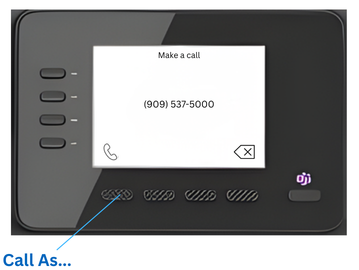
- A window appears listing the Call As... options
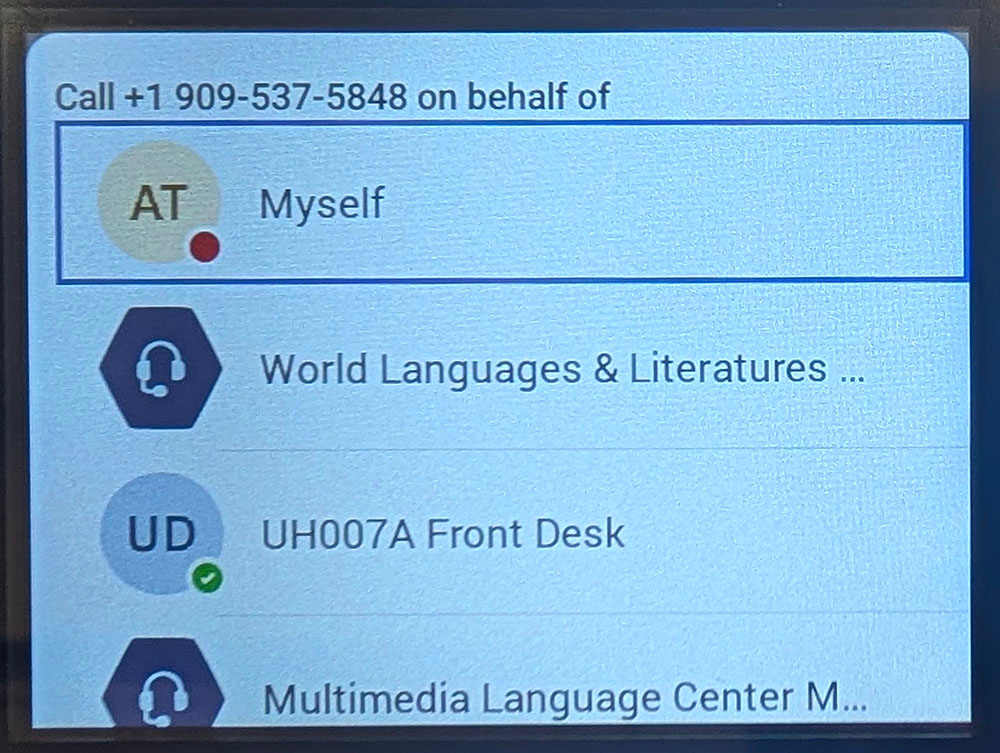
- Use the navigational circle buttons to move down to select the desired option
- Press the checkmark button in the center of the navigation buttons.
How To Videos
How to Set Line Keys (shortcut keys on the left side of the LCD screen)
