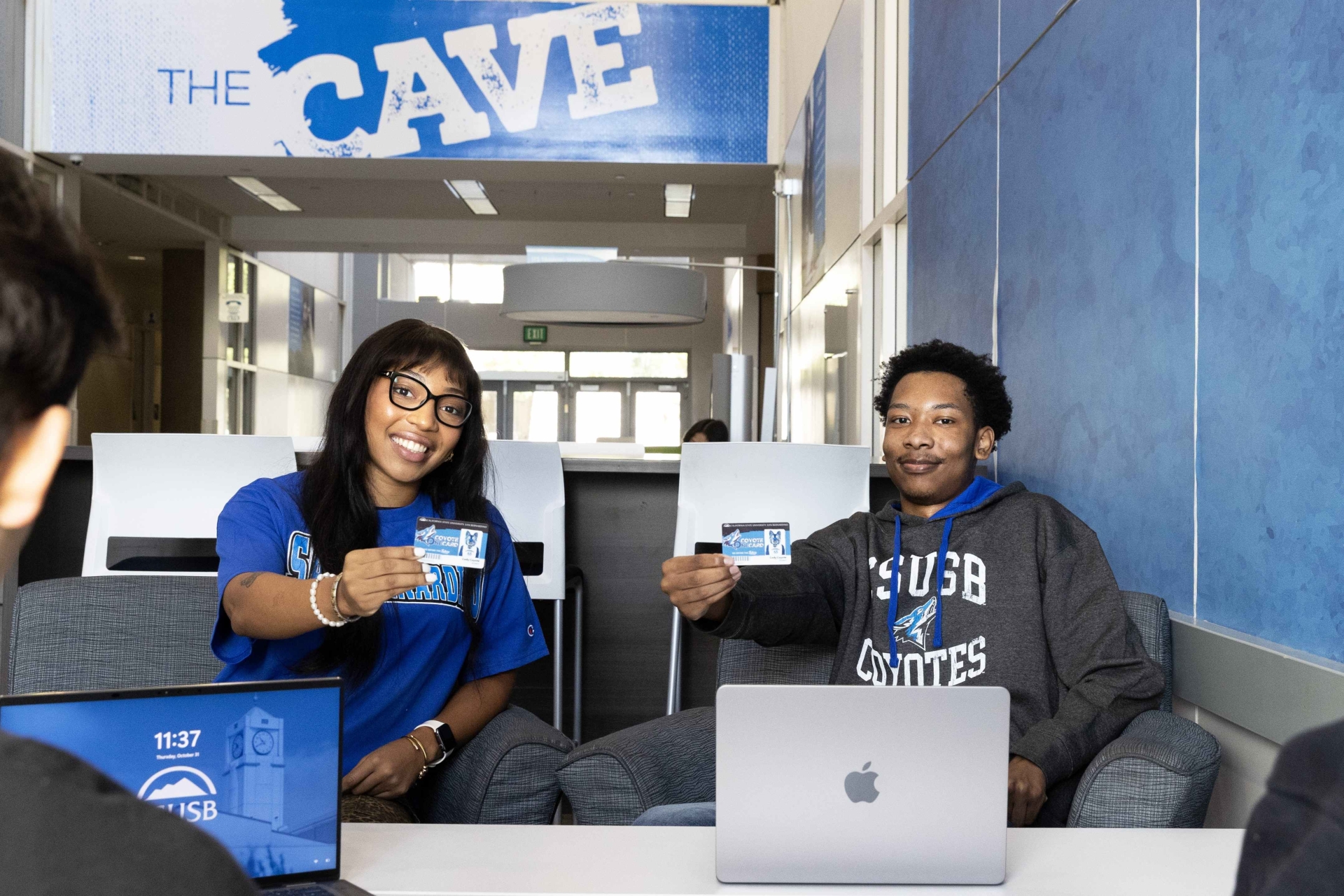
Coyote OneCard is the Official CSUSB Student ID card.
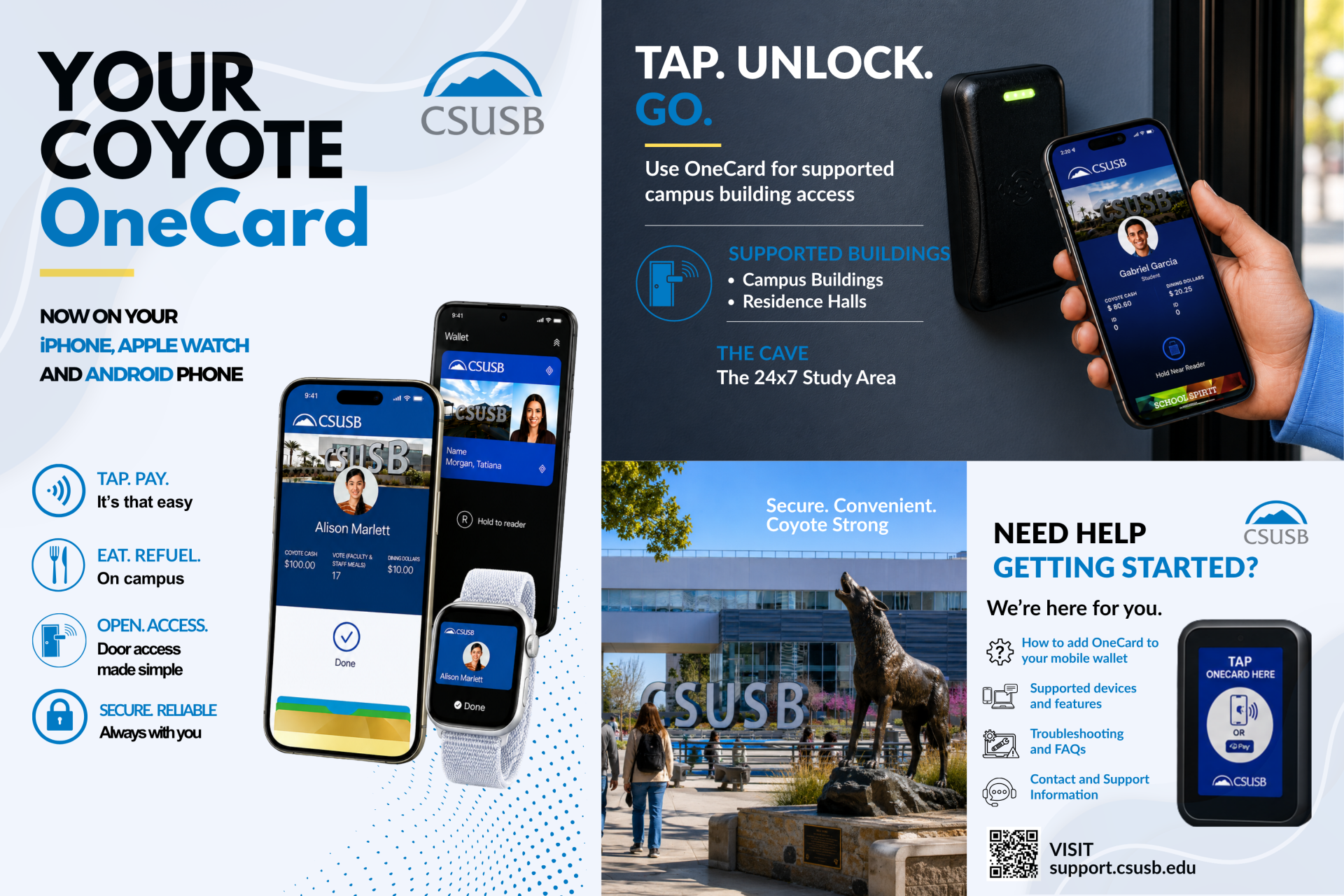
Add Your OneCard to Your Wallet!
1. How to upload your Coyote OneCard photo:
- Log in to the Coyote OneCard Portal with your Coyote ID and password.
- Follow the photo guidelines (plain background, no hats/sunglasses, no filters, face centered and well-lit).
- Upload, crop, and submit your photo.
- Watch for an approval email.
2. Download the App
Get the Atrium Campus Connect App from your app store:

Follow Apple Wallet instructions

Follow Google Wallet instructions
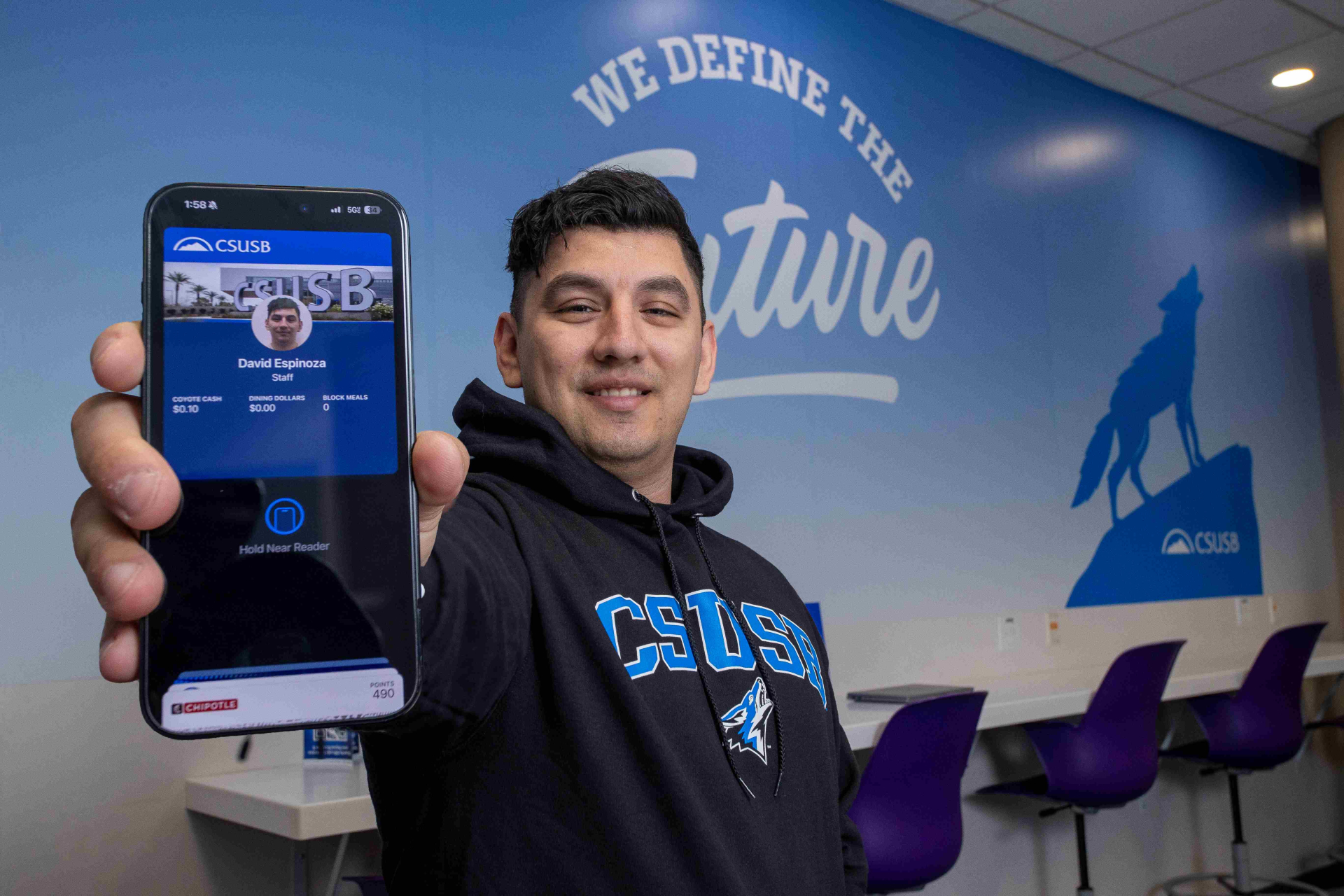
- Door Access: Afterhours door access to the Cave study area
- Library Card: Library barcode on the back
- Debit/Print Card: Add Coyote Cash for purchases/printing
- Cash Value Machine: Add Money To Your Coyote OneCard
- Meal Card: Meal Plan or card reloads
- Fitness Card: Access to Rec Sports Center
- Medical Card: Access to Student Health Center
- Bus Pass: Free transit with physical Coyote OneCard
(Physical Coyote OneCard must be shown when boarding) - OmniTrans: San Bernardino Valley
- SunLine: Coachella Valley and Palm Desert Commuter Link
- Victor Valley Transit: Victor Valley
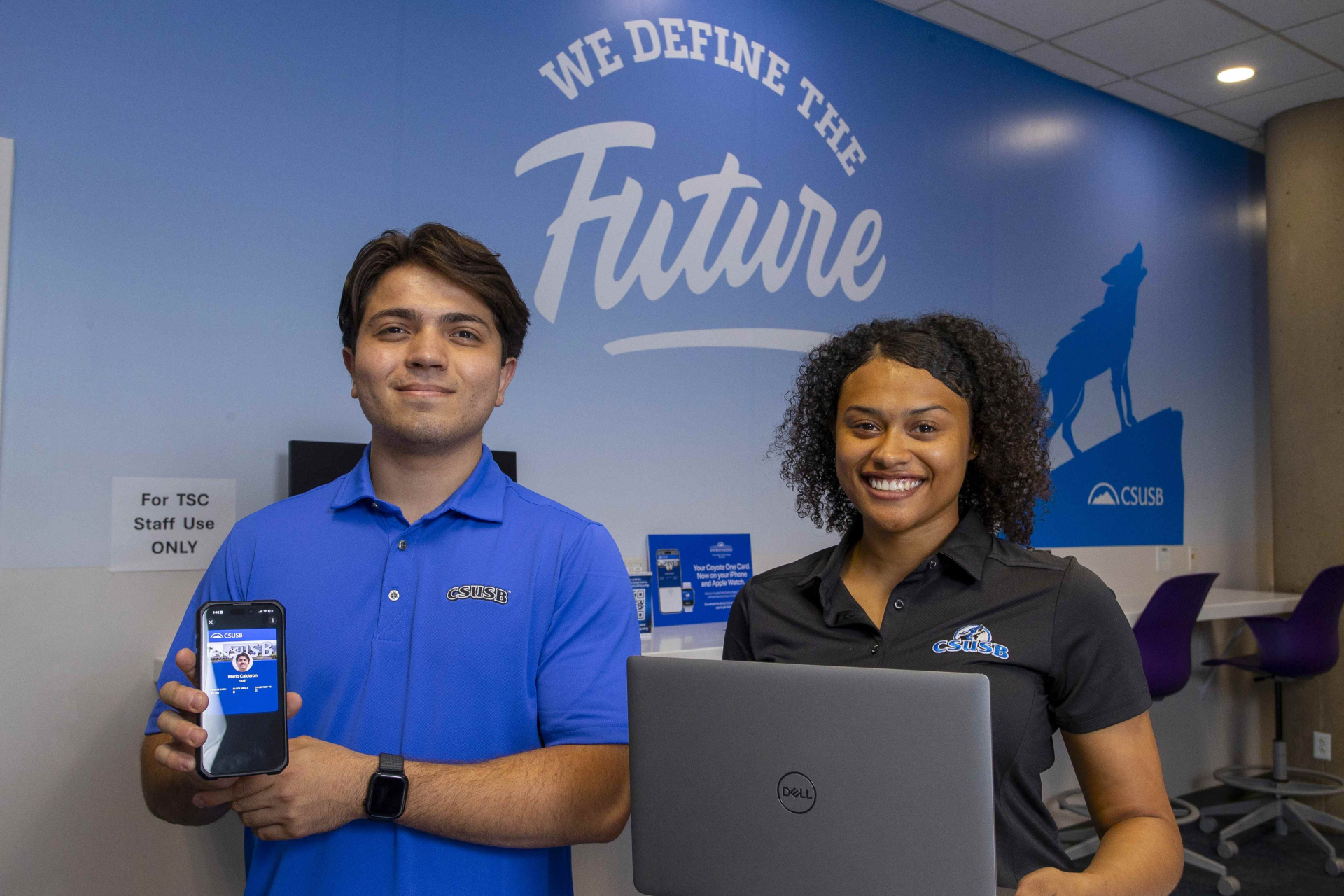
- Deposit to your Coyote Cash using your credit card or bank account
- Review your account balances and transaction history
- View your Digital Coyote OneCard
- Create automatic deposits and low balance warnings
- Create Parent/Guest Accounts to allow them to add funds
- Lock your physical OneCard if lost or stolen
- OneCard Portal: Manage funds, view transactions, and set account preferences like low balance alerts and guest access. Adding Money to your CoyoteOne card.
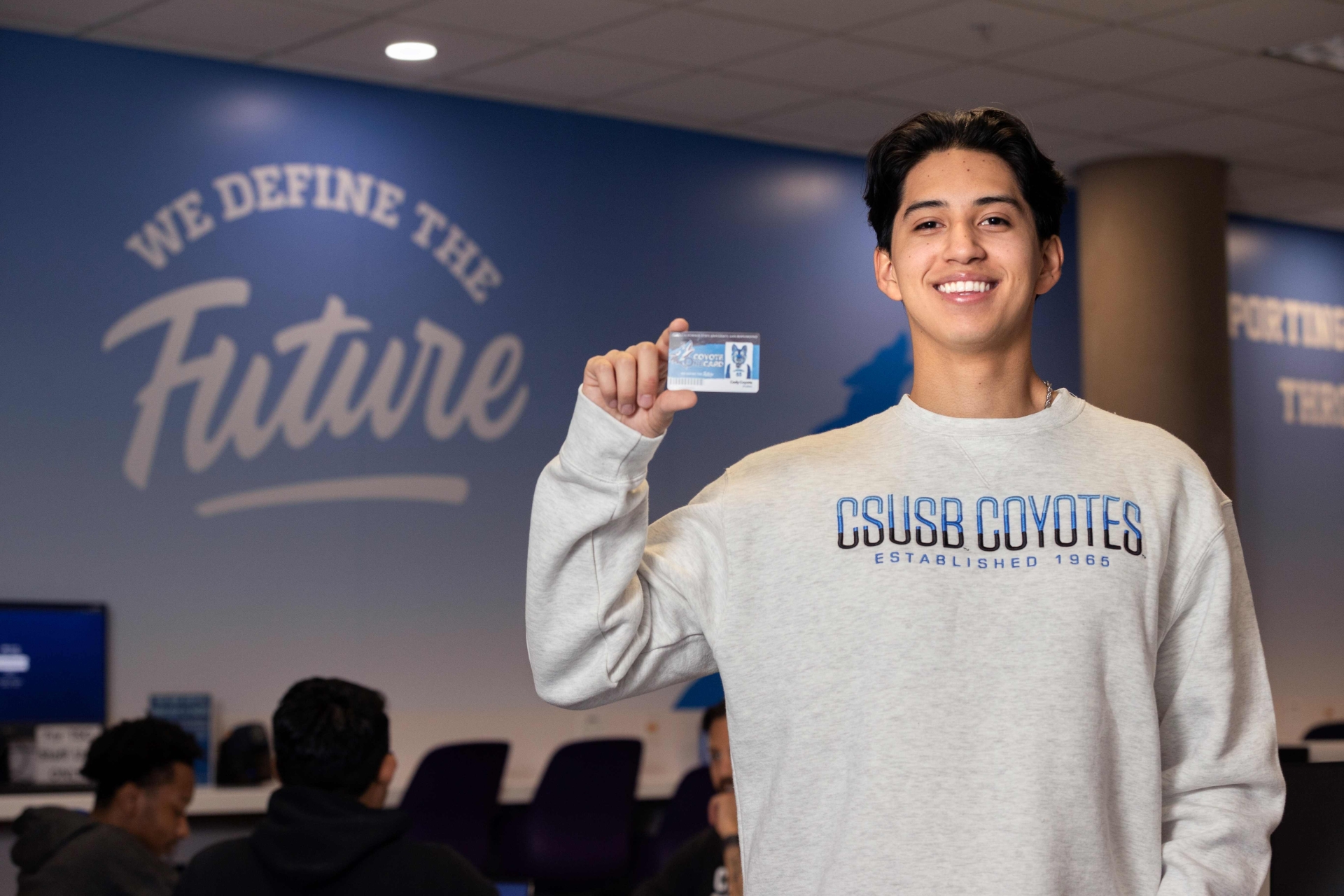
Requesting a Physical Coyote OneCard:
Once you have completed your photo submission and received an approval, you can request a Physical OneCard online via Opening a Support Case or visiting either campus's Technology Support Center (PL-1109 and RG-103).
To pick up your physical card bring your Coyote Mobile Wallet ID for verification.
Attention Students: There is a $10 replacement fee for your Coyote OneCard that must be paid to the office of Student Financial Services before receiving a replacement OneCard. This payment can be made in person in UH-038 or online via your student financial center.
Instructions on making that payment can be found at Coyote OneCard Replacement.
