What to Expect
 Beginning Fall 2026, Gradescope will be available through Canvas for collecting and grading assignments and exams. In addition to supporting digital and paper-based grading, Gradescope includes built-in Bubble Sheet assessments, allowing instructors to administer and grade multiple-choice exams directly within the platform.
Gradescope integrates seamlessly with Canvas, making it easy to transfer scores to the Canvas gradebook while providing AI-assisted grading tools, flexible rubrics, and detailed analytics to streamline the grading process.
When
Gradescope is available NOW! Enable in Canvas via Settings or access directly.
Transition from Scantron
During Fall 2026, instructors are encouraged to begin using Gradescope Bubble Sheets for multiple-choice exams as the campus transitions away from the traditional Scantron process.
Beginning Spring 2027, Blue Scantron forms will no longer be available on campus, and Scantron scanning services will be discontinued in the TSC. Administer in-person multiple-choice bubble sheet exams using Gradescope Bubble Sheets. Green Scantrons may be available if your Department/College provides scanning services.
Access via CanvasAccess Gradescope Portal
Training
- Thursday, October 8 | 12:00 - 1:00 p.m. | PL-1104 and via Zoom
- Tuesday, October 13 (Tech Week) | 11:00 - 12:00 p.m. | PL-1104 and via Zoom
- Wednesday, October 21 | 4:00 - 5:00 p.m. | PL-1104 and via Zoom
- Thursday, November 19 | 12:00 - 1:00 p.m. | PL-1104 and via Zoom
- Friday, December 11 | 12:00 - 1:00 p.m. | PL-1104 and via Zoom
- Monday, December 14 | 12:00 - 1:00 p.m. | PL-1104 and via Zoom
- Friday, January 8 | 12:00 - 1:00 p.m. | PL-1104 and via Zoom
- Monday, January 11 | 12:00 - 1:00 p.m. | PL-1104 and via Zoom
- Wednesday, January 13 | 12:00 - 1:00 p.m. | PL-1104 and via Zoom

How to Use
Transitioning from Scantrons? Here's how to migrate.
Gradescope Bubble Sheet TemplateScanning TipsInstructor FAQs
Pick up Gradescope Bubble Sheets in your Dean's office or print from any printer.
Gradescope Bubble Sheet Template
Note: If your exam is 100 questions or less, you only need to print page 1.
Printing Tips
- Do not edit the template.
- Use white paper, not colored paper.
- Print just the first page (for up to 100 questions) or both pages (for 101-200 questions).
- Do not make photocopies of this document; directly print the number required.
- Print at 100% scaling (do not shrink or enlarge). Confirm that the four corner marks on each page of the bubble sheet template are not cut off by the printer.
Administer your exam in person, providing your students with the Bubble Sheets.
Tips for Students - Best practices when filling in a bubble sheet
- Use a pencil and eraser when completing bubble sheets.
- Fill bubbles clearly with a pencil.
- Erase fully if you change an answer. Do not cross out or strike through bubbles.
- Avoid pens or markers, as ink can bleed through the page or make answers more difficult to read.
- This can be completed using any scanner. See the "Where can I scan" section below for various locations.
- If you used different versions, you do not need to separate the versions.
- Most scanners support scanning to email or USB.
- You do not need to scan them one by one. You can scan multiple students' work in one scan, and Gradescope will automatically divide (split) them when grading. It is recommended to keep batch sizes below 70-80 submissions, as very large uploads may occasionally result in slower processing.
Looking to purchase a scanner for your department? - See Recommended Scanners
For each course in which you use Gradescope, you need to enable it in the Navigation.
- From the course navigation menu, click on Settings.
- Select the Navigation tab at the top.
Click the three dots next to the Gradescope row and choose Enable.

- Optional Step: Drag Gradescope to your desired location in the list.
- Click Save.
If you would prefer your students only access Gradescope through modules or assignments, you may remove this after you have configured Gradescope for your course.
Note: When you link a new Gradescope assignment, a new Gradescope account will be created for you if you do not already have one associated with the email address (e.g., your school email) that you use in Canvas.
- Click the dotted drop-down menu to the right of the Assignment button.
Click the Gradescope option.

- Choose how you want to link this Canvas assignment to Gradescope:
- A new Gradescope Assignment (this option is selected for this example)
An existing Gradescope Assignment

At this point, a new Gradescope account will be created for you if you do not already have one associated with the email address (e.g., your school email) that you use in Canvas.
- Select Link Assignment.
- Finish creating your assignment.
- Select Bubble Sheet
- Click Next
- Enter an assignment name
Click Create Assignment
The window will close, and your assignment will now be created and listed in your Assignments.
- Click the Assignment you just created to continue setting up in Gradescope. It will open in a new window.
Optional Step: Disable Regrade Requests.
Regrade requests are enabled by default for all published assignments.
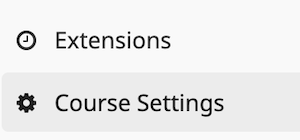
- In the Gradescope window, click on the Course Name below the gradescope logo.
Click Course Settings
Uncheck the option "Enable Regrade Requests"
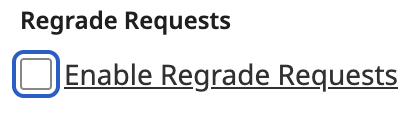
IMPORTANT - Scroll to the bottom and click the Update Course button to save the change

To return to your assignment, click Assignments in the gradescope toolbar
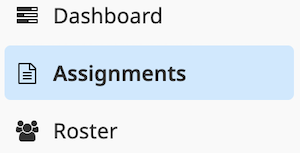
- Select your assignment from the list. It will return to the Edit Answer Key section. Continue with the steps below.
Enter your answer key(s)
Note: If Edit Answer Key is not selected, click it in the left menu. If you don't see the menu, click the top menu icon
 .
.
- Click the appropriate bubbles for the answers.
Gradescope Guide - Answer Key Click Save Answer Key. This will open the Manage Scans window. If you do not see this window, click Manage Scans on the left.

- Click the appropriate bubbles for the answers.
- Click Select PDF Files
- Select the PDFs of your scanned bubble sheets and they will begin uploading. You can also drag and drop submissions directly onto the Manage Scans page.
Follow the prompts on-screen to review. Confirm that the names match the roster.
- If there are any issues, you may need to sync your roster. How to Sync Canvas Roster
- In your Gradescope assignment, click on Grade Submissions on the left side navigation bar.
- Gradescope will automatically grade the Bubble Sheets assignments. Instructors can review questions and submissions and make manual edits as needed.
- Review any uncertain marks as they appear. Click either Uncertain Marks at the top of the page or Uncertain Mark for an individual question.
- The uncertain mark will appear along with an image of each attempted answer. Select the correct bubble option for each answer.
- Select Confirm All Marks.
- Click Review Grades.
Option: Post scores to Canvas and/or publish feedback.
Post Grades syncs or transfers the final numerical scores over to your Canvas gradebook.
Publish Grades makes scores and detailed feedback visible to students inside the Gradescope platform. This will be available to students if you have the Gradescope toolbar Enabled on the left. You have the option to disable it after you set up your account.
There are several statistics and analytics available. Assignment Statistics
Do NOT click "Publish All Grades" unless you want to release the bubble sheet and rubric (answers) to students.
Where can I scan the students' tests?
General Scanners - Scanners available to faculty from any department or college are listed under General Scanners.
Department/College Scanners - Scanners available to faculty within their department/college.
Choose below to expand.
| Department/College | Location | Notes |
|---|---|---|
| Any Dept/College | San Bernardino Campus | Technology Support Center (TSC) - available during their business hours |
| Any Dept/College | Palm Desert Campus
| IW CopyRoom is located in IW 102 office suite |
| Department/College | Location | Notes |
|---|---|---|
| College of Arts and Letters | UH-237 | |
| College of Education | COE Mail Room | |
| College of Social and Behavorial Sciences | SBS-203 | |
| Communication Studies | UH-018 | |
| English | UH-334 | |
| Kinesiology | HP-120 | |
| Mathematics | JB-368 | |
| Nursing | HP-235 | |
| Philosophy | UH-314 | In Department Mail Room |
| World Languages & Literatures | UH-314 | In Department Mail Room |
Gradescope Resources
Gradescope Help CenterGradescope Instructor Guides
All of the Gradescope Help Center guidance, articles, and videos are available without leaving Gradescope.
Use the Get Started tab to search for guides or use the Help Center tab to search the help site using keywords.
Below are frequently accessed guides and videos:
- Adding Students and Staff
- Creating, Editing, and Deleting a Course
- Assignment Types
- Assignment Settings Overview
- Creating and Editing Sections for Assignments
- Deleting an Assignment
- Duplicating an Assignment
- Creating an Online Assignment
- Grading Online Assignments
- Grading Submissions
- AI-Assisted Grading and Answer Groups
- Anonymous Grading
- Exporting Grades, Evaluations, and Submissions
- What browsers does Gradescope support?
- How do I login using my school’s credentials?
- Instructor FAQ
Videos
Instructor FAQs
If your scanned exams did not automatically match up to the roster, try scanning in grayscale. Check out the scanning tips for more info.
You may need to re-sync the roster.
Guide - How to Sync Canvas Roster
No, you will need to re-sync the roster in Gradescope when students add or drop your course. Any grades or submissions for dropped students will be preserved in Gradescope.
Guide - How to Sync Canvas Roster
When a session has been idle for 20 minutes, there will be a warning that the session will expire with a 5-minute countdown.
Pick up Gradescope Bubble Sheets in your Dean's office or print from any printer.
Gradescope Bubble Sheet Template
Note: If your exam is 100 questions or less, you only need to print page 1.
No, but it is recommended that they use a pencil and eraser when completing bubble sheets and fully erase any changes before submission.
Crossed-out answers are not supported, as the AI may not be able to determine which response the student intended.
Pens or dark ink can bleed through two-sided pages, which may interfere with answer detection and grading accuracy.
Yes. After you finish grading your submissions, click Review Grades in the left sidebar. If you cannot see it, click the expand button  .
.
Need guidance on scanning best practices? Check out the scanning tips.
- Once you have your PDFs ready to upload, click Select PDF Files on the Manage Scans page.
Select your files, and they will begin uploading. You can also drag and drop submissions directly onto the Manage Scans page.
Tip: For faster processing, we recommend combining multiple student submissions into a single PDF before uploading rather than uploading a separate PDF for each student.
Students - What to Know
Quick Student Tips
Check with your instructor. The department may provide them.
If not, you can print the Gradescope Bubble Sheet Template on any printer.
Fill out the bubble sheet during your exam and return it to your instructor.
Important: Print your name and ID neatly as listed in Canvas. Please do not use nicknames.
Regrades are only available if instructors have enabled this option.
Regrades happen at the question-level. You can request a regrade for a specific question, not the whole assignment. If enabled, you can request regrades for multiple questions (each as a separate request).
Guide - Submitting a Grade Request

Assignment Types
Gradescope is more than just Bubble sheets. Gradescope supports handwritten exams and homework, online assignments, programming projects, bubble sheets, and more. Faculty can grade consistently and efficiently online, while students receive clear, timely feedback. All without changing how assignments are completed.
Select an assignment type below to find out more info.
Benefits of Gradescope
Benefits of Gradescope Bubble Sheets
- No special equipment or paper required. Print the bubble sheets on any standard printer using plain white letter-size paper, then scan the completed sheets using any scanner or multifunction copier.
- Use any standard pencil— a #2 pencil is not required. Be sure to fill in each bubble completely and erase changed answers thoroughly.
- Send grades directly from Gradescope to the Canvas gradebook. No spreadsheets or manual grade entry required.
- Manage the complete exam process on your own schedule:
- Print as many bubble sheets as you need using standard white letter-size paper.
- Scan completed sheets using an available scanner or multifunction copier.
- Create or revise the answer key from your computer. Gradescope automatically updates scores when you change an answer, adjust point values, or award partial credit.
- Publish graded submissions electronically so students can review their results online.
- Avoid delays caused by relying on a single scanning location, particularly during busy exam periods.
- Grade as many as five versions of an exam in a single assignment. Sheets from different versions can be scanned together, and Gradescope will sort them automatically.
- Add or replace individual submissions when needed, including submissions for accommodated exams or make-up tests.
- Simplify the identification process for students. They write their name and student ID rather than filling in a series of identification bubbles.
- Review unclear responses before finalizing grades. Gradescope flags marks it cannot confidently interpret, allowing the instructor to confirm the student’s intended response.
- View exam statistics and question-level analysis to help identify potentially difficult or ineffective questions.
| Feature | Gradescope | Scantron Sheets |
|---|---|---|
| Question Types | Multiple choice, short answer, free response, coding, math, diagrams, and more | Primarily multiple choice and true/false |
| Submission Format | Digital uploads, online assignments, or scanned paper exams | Paper bubble sheets scanned with a Scantron machine |
| Grading | Automatic grading for objective questions, AI-assisted grouping of similar answers, rubric-based grading | Automatic grading for bubbled responses only |
| Feedback | Detailed rubric feedback, comments, annotations, and point breakdown | Usually only provides scores and answer keys |
| Partial Credit | Supported through rubrics and manual grading | Generally not supported (unless manually adjusted afterward) |
| Analytics | Item analysis, question statistics, grading consistency, and performance insights | Basic score reports and item analysis, depending on the Scantron system |
| Workflow | Instructors create assignments online; students submit digitally or via scanned paper | Students bring paper bubble sheets (often purchased) and fill them out; instructor scans them with dedicated hardware |
| Equipment Needed | Computer or mobile device; scanner only if paper exams are used | Specialized Scantron forms and a compatible scanner |
| Integration | Integrates with many learning management systems (Canvas, Blackboard, Moodle, etc.) | Integration varies by institution and Scantron products |
