Email Security Transition: Proofpoint to Microsoft Defender
CSUSB will transition from Proofpoint to Microsoft Defender for Office 365 as our primary email security solution on Wednesday, December 17, 2025.
Not using Outlook?
If you use an email client other than Microsoft Outlook (such as Thunderbird, Apple Mail, or other third-party applications), you can continue to report suspicious emails by forwarding them to abuse@csusb.edu. Our security team monitors this inbox and will investigate all reported messages.


Quick-use guides on the basics of Defender are provided below. Training sessions are also being offered in-person and via zoom.
Training Schedule
- Tuesday, January 6 | 10:00–11:00 a.m. | How to Use Defender | PL-1104 and via Zoom
- Tuesday, January 12 | 10:00–11:00 a.m. | How to Use Defender | PL-1104 and via Zoom
- Faster processing of reported threats.
- Automatic analysis enhances detection.
- Improved threat intelligence for better protection.
- Seamless integration with Microsoft's security ecosystem.
How To Use
What You Will Notice
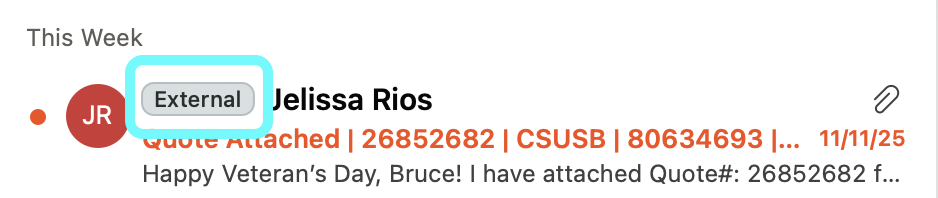
- "External" Email Tag – Emails from outside the university will display an "External" label, helping you quickly identify messages that require extra vigilance. This is an important defense against phishing and impersonation attempts.
- New Reporting Tools – Native to Microsoft Outlook (Desktop, Mobile, and Web), you'll have access to new "Report Phishing" and "Report Junk" buttons for easier reporting of suspicious emails. You will find instructions on our project page.
- New Quarantine Dashboard – A new Microsoft Defender quarantine dashboard where you can preview quarantined spam and phishing emails, and release them if any emails are accidentally quarantined.
How to Report Email
This feature is available on Outlook for Desktop, Mobile, and Web clients.
When viewing an email in Outlook, there are multiple ways to report it.
- Using the top toolbar
- Right-clicking an email
How to Report Junk
- Select the email.
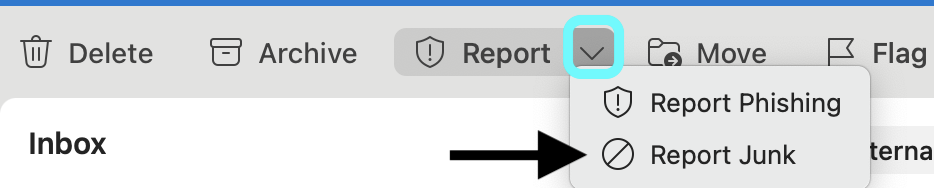
- Click the dropdown arrow on the right of the Report button
Choose Report Junk
A confirmation message appears
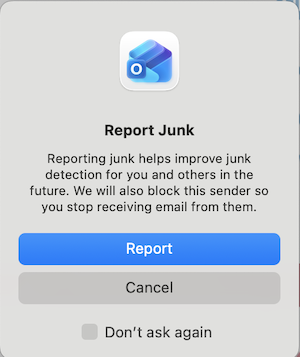
Click Report or Cancel.
Note: Click Don't ask again to skip the confirmation in the future.
- Right-click the desired email
Click/Select Report
Click Report junk
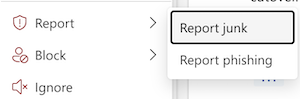
A confirmation message appears
Click Report or Cancel.
Note: Click Don't ask again to skip the confirmation in the future
How to Report Phishing
- Select the email
Click the Report button in the toolbar to Report as Phishing
A confirmation message appears

- Click Report or Cancel.
- Note: Click Don't ask again to skip the confirmation in the future.
- Right-click the desired email
Click/Select Report
Click Report phishing

A confirmation message appears
Click Report or Cancel.
Note: Click Don't ask again to skip the confirmation in the future.
Don't see the Report button?
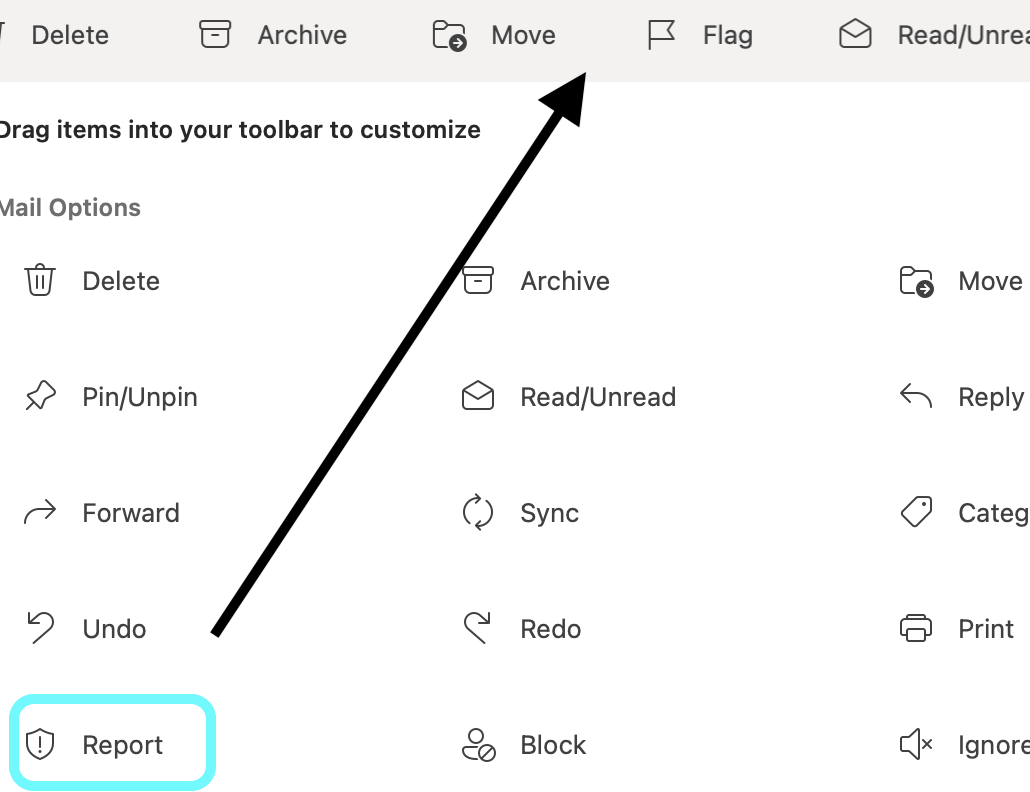
If you have ever customized your toolbar, you may not see the Report button.
- Click the 3 dots in the upper right of the toolbar to open settings.
Click Customize Toolbar

Drag Report up to the Toolbar
External tag on Email
What the Tag Means
- The "External" tag clearly indicates that an email originated from outside our university's email system.
- It applies to all messages not sent by a recognized sender.
Why It's Important
- This visible indicator is a crucial step in our defense against sophisticated phishing attacks and impersonation attempts.
- This enhancement is designed to boost our collective security awareness.
Your Awareness is Key
- When you see the "External" tag, take a moment to verify the sender, assess the content, and hover over links before clicking.
- Treat all external emails with heightened vigilance.
Domains that are considered internal
Emails sent from the following domains are considered internal and do not get an External tag:
- csusb.edu
- coyote.csusb.edu
- groups.csusb.edu
- calstate.edu
Why
| Microsoft 365 A5 Licensing | Financial and Security Monitoring Benefits |
|---|---|
As part of our strategic move to Microsoft Teams Phone, the university invested in comprehensive Microsoft 365 A5 licenses. Moving to Defender leverages the benefits of the A5 licenses already used for Teams Phone.
| By consolidating our security solutions under the Microsoft 365 A5 umbrella, we're achieving significant cost savings for the university.
|
Benefits
| Advanced Email Protection | Enhanced Desktop Security | Unified Platform |
|---|---|---|
|
| Seamless integration across email, desktop, and mobile creates a cohesive security ecosystem |
Timeline
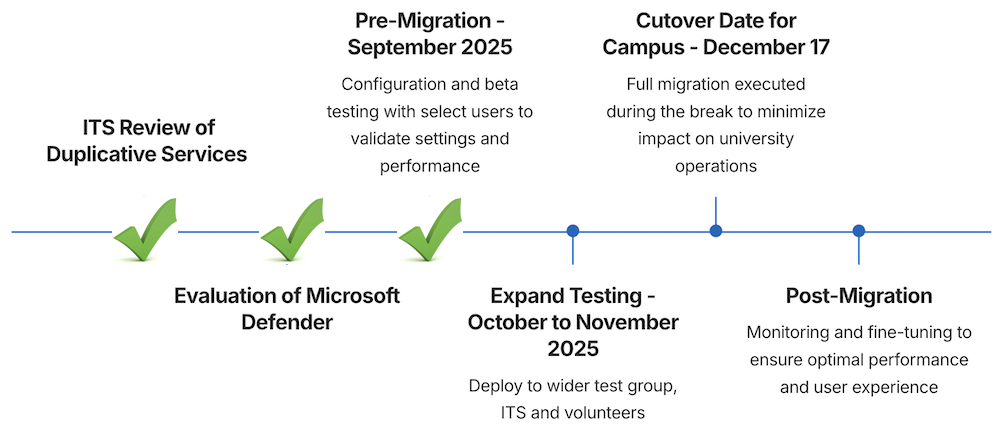
| Task | Details | Status |
|---|---|---|
ITS Review of Duplicative Services | Completed | |
Evaluation of Microsoft Defender | Completed | |
| Pre-Migration - September 2025 | Configuration and beta testing with select users to validate settings and performance | Completed |
| October - November 2025 | Approval from IT Governance Sub-Committees and Executive Committee to transition to Microsoft Defender | Completed |
| Expand Testing - October to November 2025 | Deploy to wider test group, ITS and volunteers | Current |
| Cutover Date for Campus - December 17 | Full migration executed during the break to minimize impact on university operations | Upcoming |
| Post-Migration | Monitoring and fine-tuning to ensure optimal performance and user experience | Upcoming |
Additional Resources and Support
- Report suspicious emails to: abuse@csusb.edu
- Contact the Technology Support Center for assistance: (909) 537-7677
