View Slide Examples and Different Styles
Add a Slide
- Login to Drupal.
- Select the "Content" link from the top left of the Drupal Administrator Menu, then select the blue "+ Add Content" link.
- From the Add Content page, select "Slide". Alternatively you can go directly to the Add Slide page using this Add Slide Page link.
- All slides are required to have a Title and Image. Slide Images should be cropped to 1000px by 600px. Titles should be as descriptive as possible so they are easier to find later on if needed. For example "Event Slideshow" wouldn't be a good title as content in the back pertains to every single site in Drupal so the chances of finding your slide labeled Event Slideshow would most likely take much longer than needed.
- If your slide is styled to only display an image, make sure there is very little text. Image only slideshows should be exactly that, not a flyer or text heavy. Text Heavy content should be reserved for Content right or Content style slideshows. This ensures users that depend on screen readers are able to read the text in the slide.
- Alternative text is required if an image is used. The alternative text should be a short description of the image that is used by screen readers and displayed when the image is not loaded. This is important for accessibility.

- Alternative text is required if an image is used. The alternative text should be a short description of the image that is used by screen readers and displayed when the image is not loaded. This is important for accessibility.
- You also have the option of adding Content and a Link which may or may not be displayed on your Slideshow depending on which Slideshow style is being used on your site.
- Lastly, enter the Section Access that is associated with your Slideshow and select the "Save" button which will save the Slide and publish it to your Slideshow.
Edit or Remove a Slide
- Hover or click on the slide you'd like to edit in the top right hand corner.

- The Slide edit page allows you to make updates to any field in the Slide and save your changes with the "Save" button at the bottom.
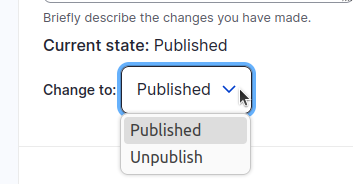
- To remove a Slide from your slideshow, select "Unpublish" from the dropdown in the right sidebar and Save the slide to unpublish it and remove it from your website.
Re-Order Slides in a Slideshow
Slides can be ordered in a number of different ways, either by alphabetical order via title (a-z or z-a), newest to oldest first (or visa versa), display weight, plus others. Contact Web Services via email at webservices@csusb.edu for assistance on determining the Slide sort order or help reordering the Slides.
To change the Display Weight of a Slide:
- Open the "Edit" page for the respective Slide.
- At the bottom of the page, under "Section Access", modify the "Display Weight" by selecting a value from the dropdown list.
- Click the "Save" button to save changes.