Add a new Draft Page
- Login to Drupal.
- Select the "Content" link from the top left of the Drupal Administrator Menu, then select the blue "+ Add Content" button.
- From the Add Content page, select "Page". Alternatively you can go directly to the "Create Page" page using this Create Page Entry link.
- You will be presented with the following fields when you create your page:
- Title: The Title of your page will appear in the banner area of your website when someone visits the page.
Content Area: To add content to your page, select a content layout style from the Content Area dropdown.
*You can review how to add content to these sections on the How to Edit Content with the Drupal Editor page or view more about the individual layouts at Page Content Layouts.
- Section Access: Lastly, enter the Section Access that is associated with your website. If you do not know what section access you should be using, please email webservices@csusb.edu. Select the "Save" button which will save the page and publish it.
Adding your new Draft Page to your Site
The new page will now be created but not yet added to your website. Your new page will have a banner that contains the word "DRAFT". Please do not use this draft page in emails or link to it from your site. To add the new page to your website, please email webservices@csusb.edu with details of where specifically on your site this page should be added to. Once Web Services adds the page to your site you will be given the proper URL along with your new page implemented with your site's template which includes a proper banner, menu, and right sidebar.
Edit a Page
- Visit the page you wish to modify.
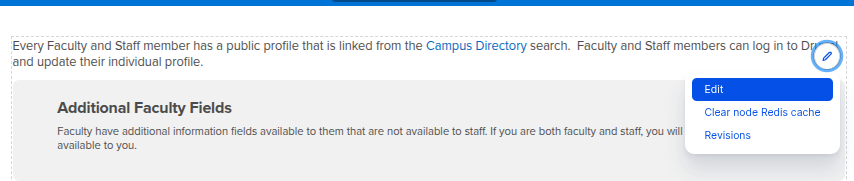
Use the mouse cursor to hover over the page's Content Area. A pencil icon will appear at the top right corner of the page and when selected, will display a menu. Select "Edit" from the menu. This will open the "Edit Page" page.
- For another method to edit a page:
- Navigate to the Drupal Content Page by selecting the "Content" Button in the top left corner of the Drupal Admin Bar.
- Filter the Drupal content by adding the Page Title to the Title field and selecting "Page" from the Content Type dropdown
- You can now select "Edit" for any page entry that you have access to that matches your filter.
Remove a Page
To remove a page for your website, please contact the Web Services team via email at webservices@csusb.edu