Student email accounts (@coyote.csusb.edu) expire one year after a student graduates.
If you wish to retain your old emails and any files placed on your google drive, you will need to request a free alumni email address and transfer your information to the @alumni.csusb.edu email address.
Step One: Request an alumni Email
Please note: you will need to have a personal (non-CSUB email).
- Send an email to alumni@csusb.edu
- Subject line must be: Alumni Email Request
- Include the following information:
- Full Name
- Student Id Number
- Alternate (non-CSUSB) email
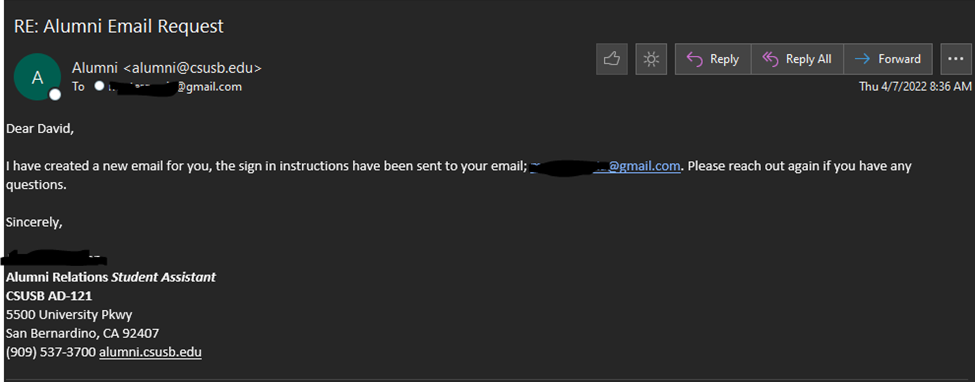
The alumni office will send you 2 emails, one confirming the request, and the second with directions to set up your @alumni.csusb.edu email address

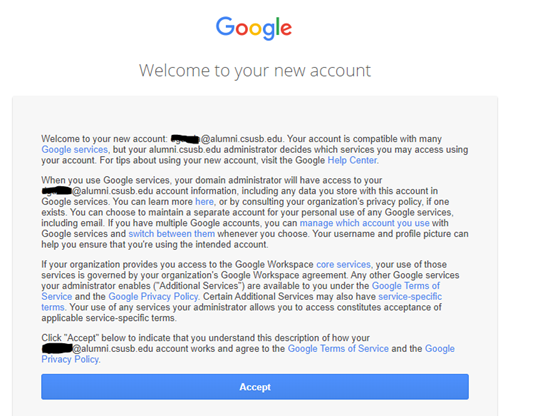
Click on the blue sign in button and you will be directed to a welcome page. Click accept once you’ve read through the information
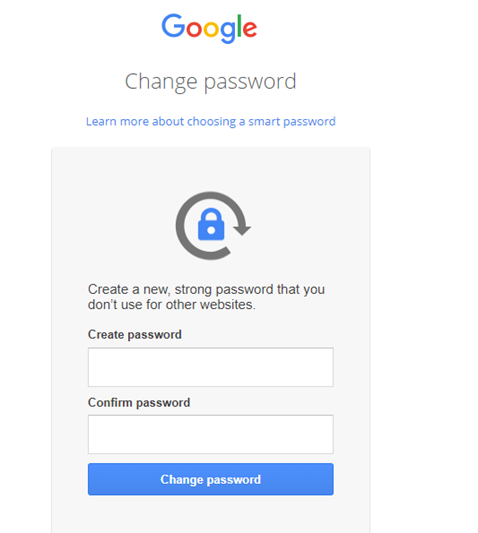
Create a password and click change password
- Your alumni email has been created

6. Go to your old @coyote.csusb.edu email account
7. Click on the profile in the upper right

8. Click on manage your account

9. Under Transfer Your Content press “start transfer”

10. Under Enter a destination account, enter your @alumni.csusb.edu account and press “send code”
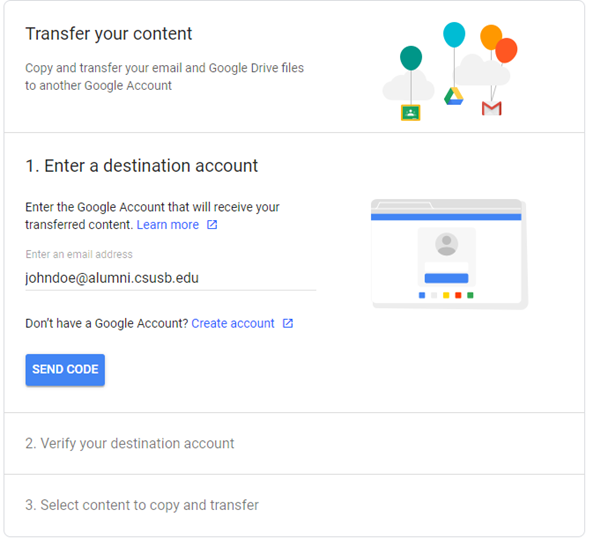
11. Leave this tab open and open a new tab
12. In the new tab, check your @alumni.csusb.edu email
13. Click on the email entitled “verify your account”

14. Click on “Get Confirmation Code”
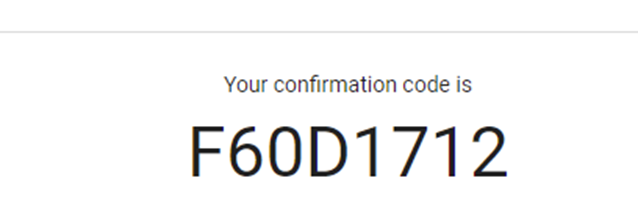
15. Copy and paste the confirmation code (note that each code is unique)
16. Return to your @coyote.csusb.edu tab and enter the code
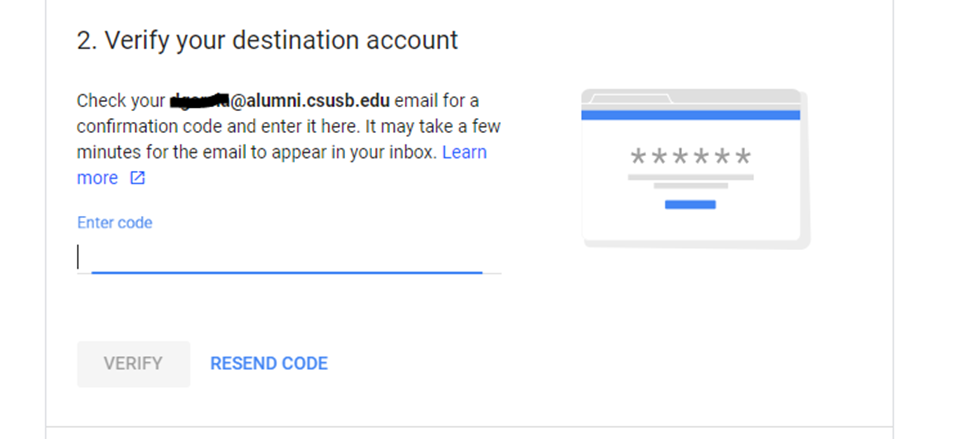
17. Press verify
18. Choose what you wish to transfer and press Start Transfer
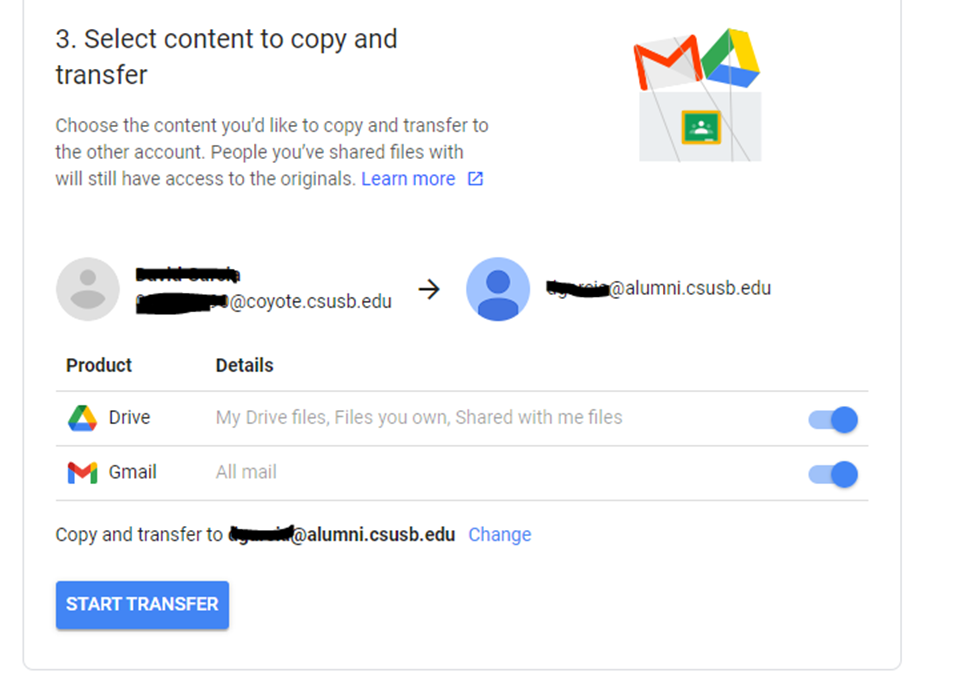
19. You will be prompted to enter your password for your @coyote.csusb.edu email address
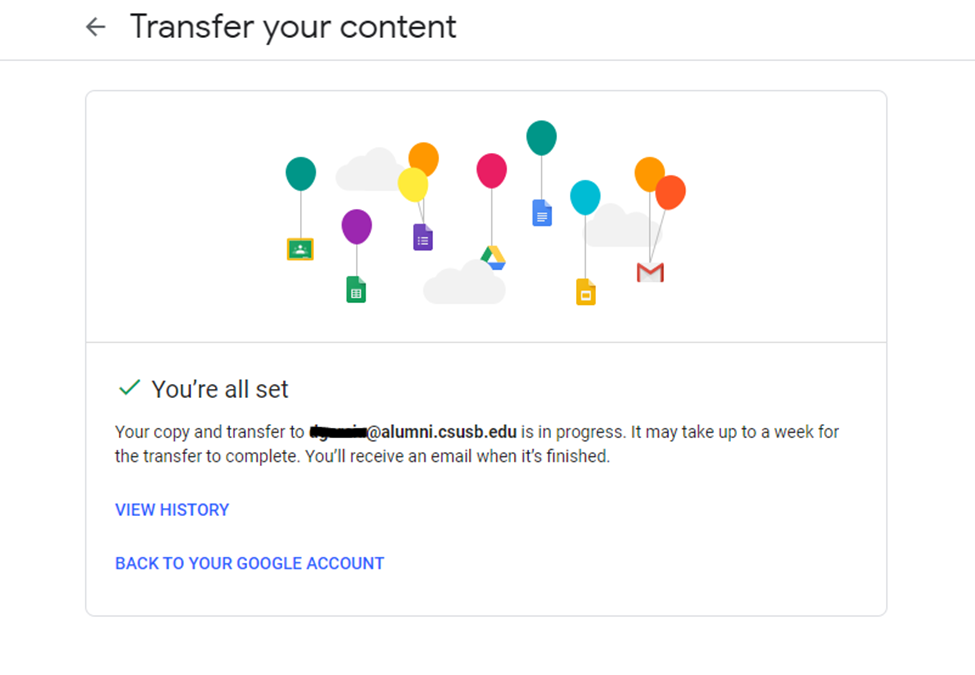
20. You should see a success message. Please note that, per google, It may take up to a week for the transfer to complete. You’ll receive an email when it’s finished.